Posts

Liferay Fragments: Configuration
Image
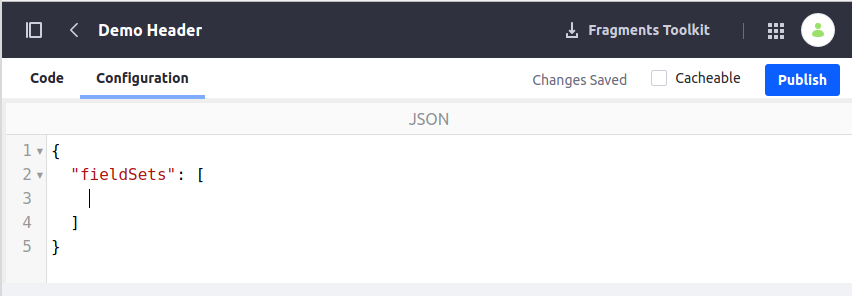
  Liferay Fragments: Configuration Overview To more flexibility - Liferay fragments may have custom configuration options. This article will explain how to add configuration options to fragments and how to use them on a content page. Add Configuration Options In a fragment editor we can define fragment configuration on the “Configuration” tab: This sample adds configuration options to control the visibility of specific sections (Language and Personal Bar) in a fragment: {   "fieldSets" : [    {       "fields" : [        {           "name" : "showLanguage" ,           "label" : "Show Language" ,           "description" : "Show Language Widget" ,           "type" : "checkbox" ,         ...

Liferay Fragments: Embedded Widgets

Image
  Liferay Fragments: Embedded Widgets Overview Liferay fragments may include other widgets inside the fragment code. This article explains how to do it. Embedding Portlets Embedding “<lfr-widget” widgets Liferay provides OOTB functionality to include widgets into fragments. Just type “<lft-widget-”, and you’ll see the list of available widgets:  For example,    < lfr-widget-nav ></ lfr-widget-nav >  will include a navigation widget to the fragment: Then you can configure it as a regular widget on the page. Note: only those widgets can be included this way, which have "com.liferay.fragment.entry.processor.portlet.alias=" property defined in portlet configuration. For example, navigation widget has “ nav ” alias: @Component (   immediate = true ,   property = {       "com.liferay.fragment.entry.processor.portlet.alias= nav " , //...    },   service = Portlet . class ) public class...

Liferay Fragments: Editable Fields

Image
  Liferay Fragments: Editable Fields Overview One of the main fragment features is Editable Fields. This article explains how to use them in fragment's code. Adding Editable Fields Fragments When you type “<lfr-” in fragment editor - you’ll see the following choices for editable fields creation (starting with “<lfr-editable-”): But this syntax is deprecated already. If you need to create an editable field - you can specify the following attributes to the HTML tag, to make it editable: data-lfr-editable-id - ID of editable field; Data-lfr-editable-type - type of editable field.  Sample:    < h1 data-lfr-editable-id ="demo-header" data-lfr-editable-type ="text" >      Header </ h1 > This example creates an editable header (H1). Once you add such a fragment to a page - you’ll be able to modify text inside the field. This makes such fragments re-usable: Editable Field Types The following field types are supported: Text ( data-lfr-edit...